
iOS audio quality
Download Enhanced Japanese voices on iPhone (iOS)
The default Japanese voice on iOS can sound robotic. Installing Apple’s Enhanced voice packs can make Japanese audio clearer in TabiTalk (and other text-to-speech apps).
You’ll download: Kyoko (Enhanced) and/or Otoya (Enhanced)
Tip: use Wi‑Fi and make sure you have enough free storage. The downloads can be large.
Steps
Go to: Settings → Accessibility → Spoken Content → Voices → Japanese → Voice
-
Open Settings, then tap Accessibility
If you can’t find it, pull down and search for “Accessibility”.
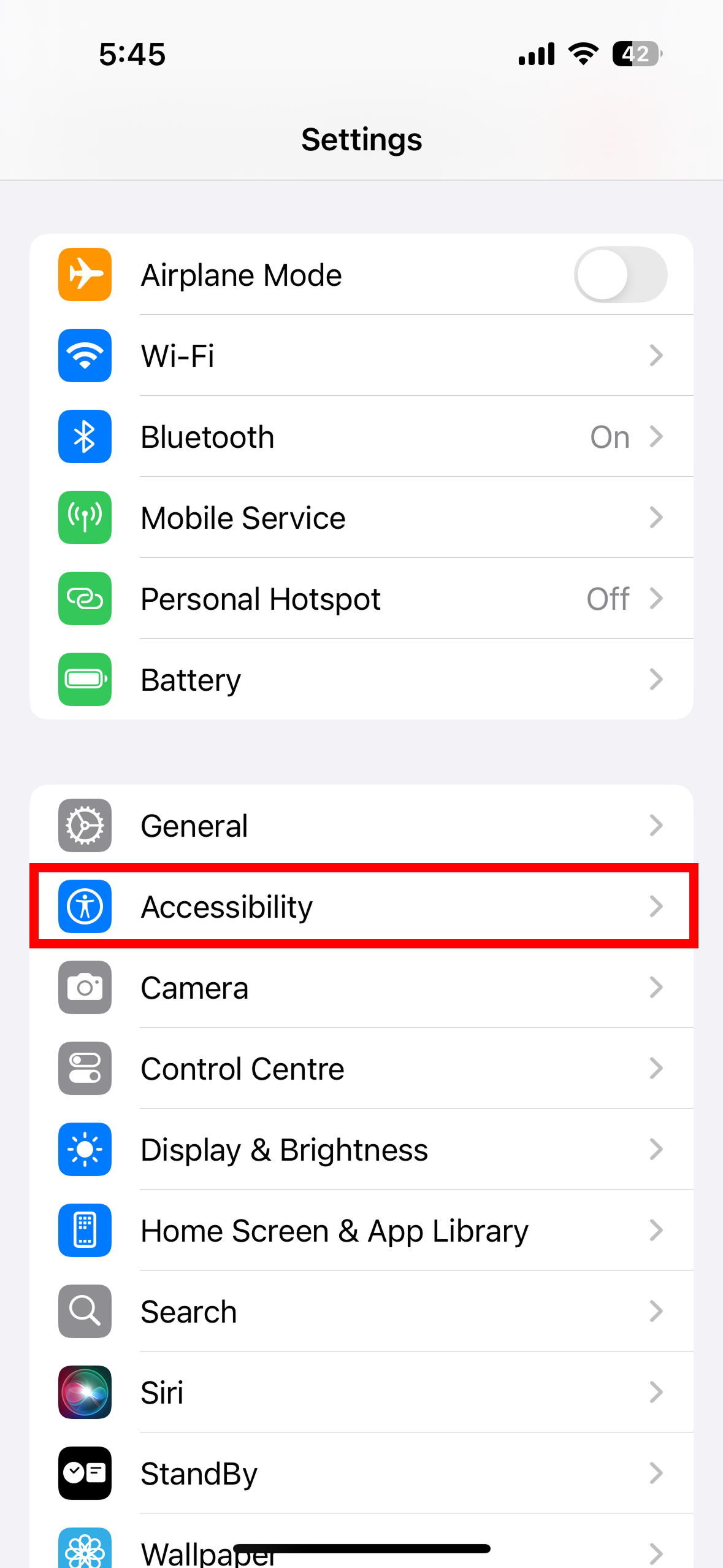
Settings → Accessibility -
Tap Read & Speak
This is where iOS manages the voices used for speech.
[On older iOS versions, this might be under Spoken Content]
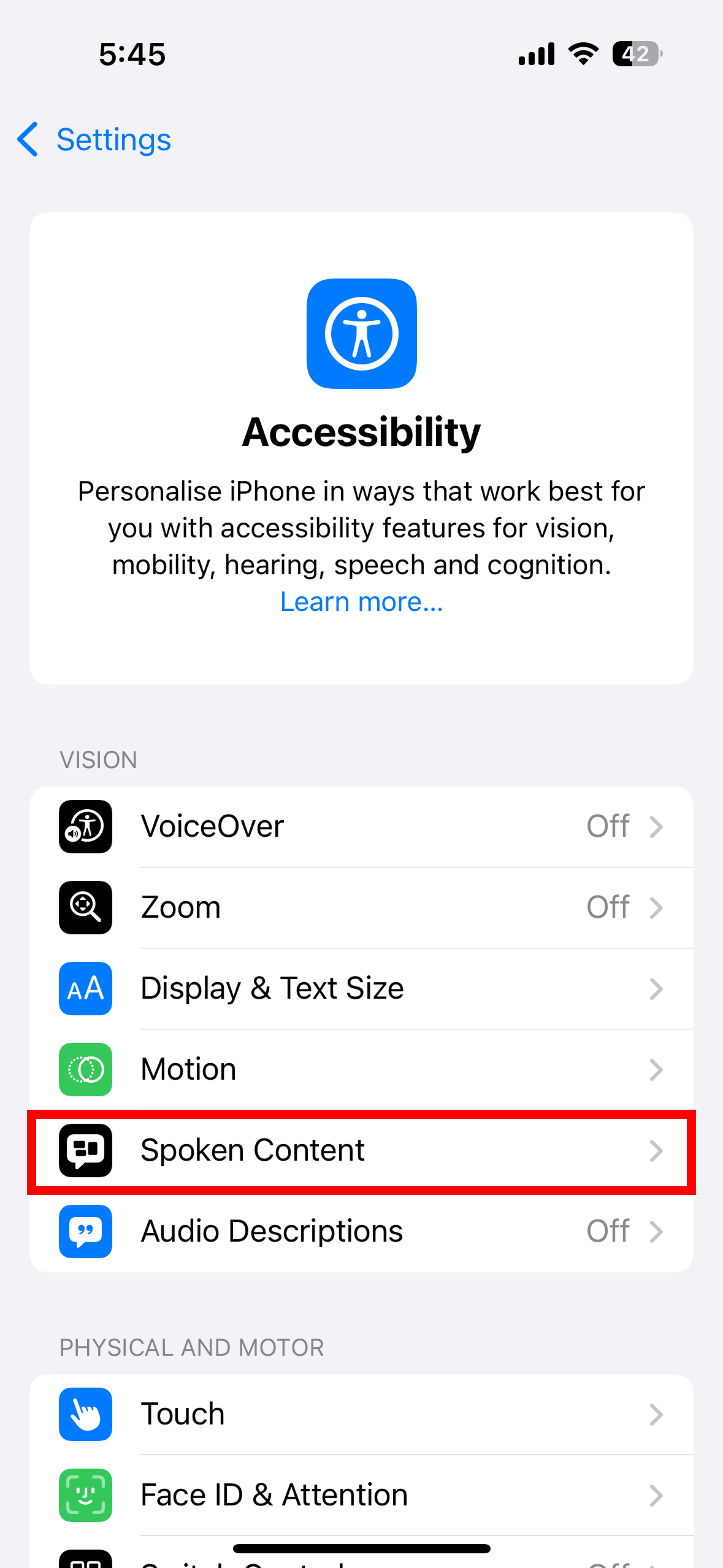
Accessibility → Spoken Content -
Tap Voices
You’ll see a list of languages.
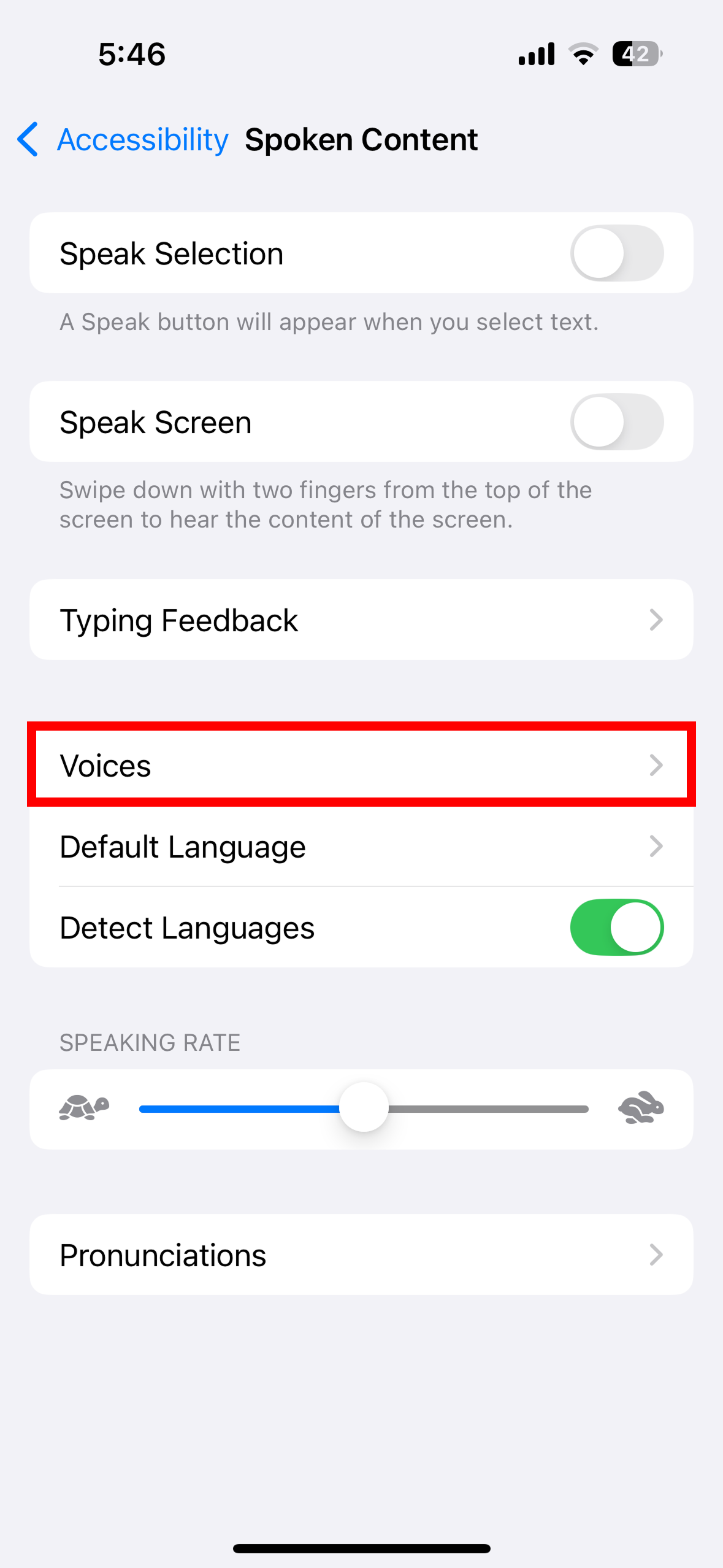
Spoken Content → Voices -
Select Japanese (Scroll down)
If you see multiple “Japanese” entries, pick the one that matches your region (usually Japanese (Japan)).
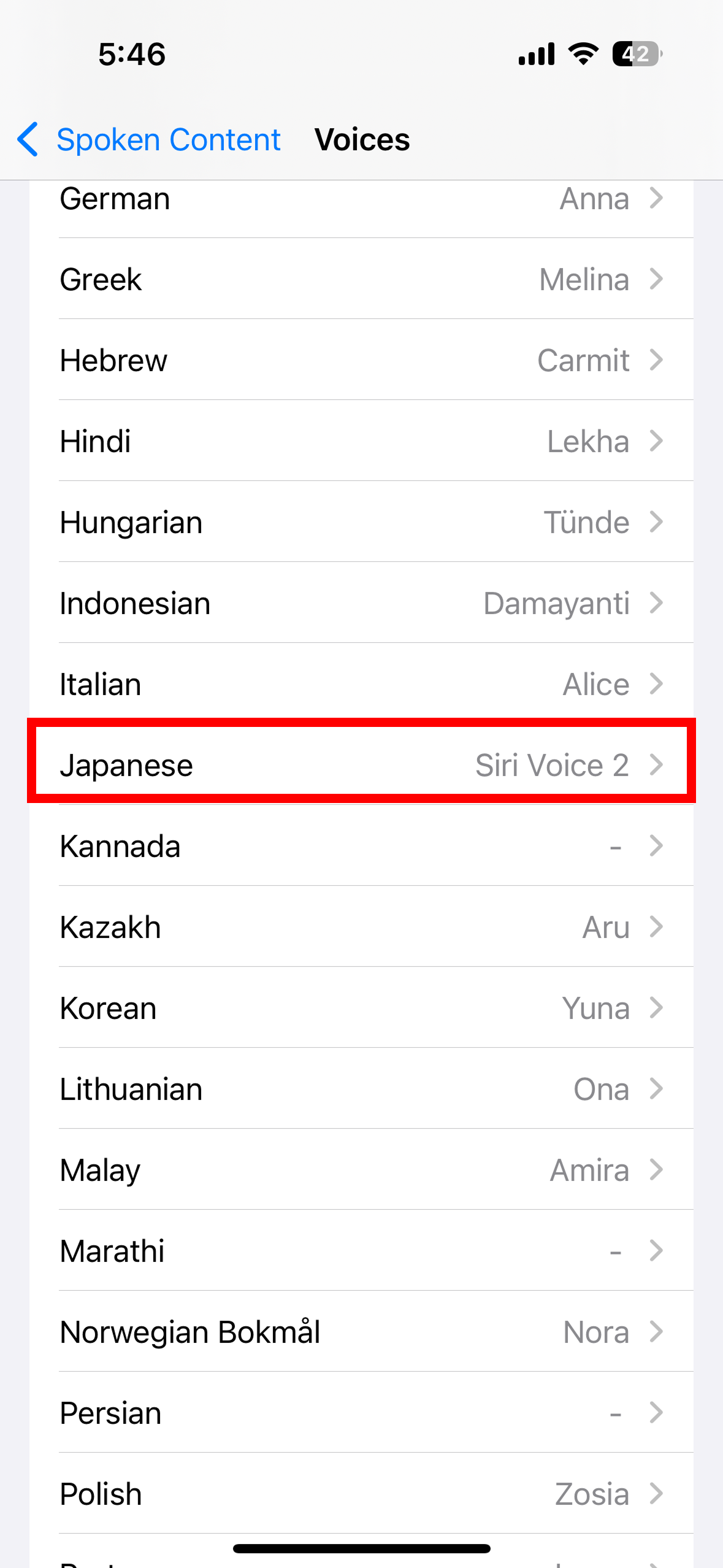
Voices → Japanese -
Tap Voice
This opens the available Japanese voices.
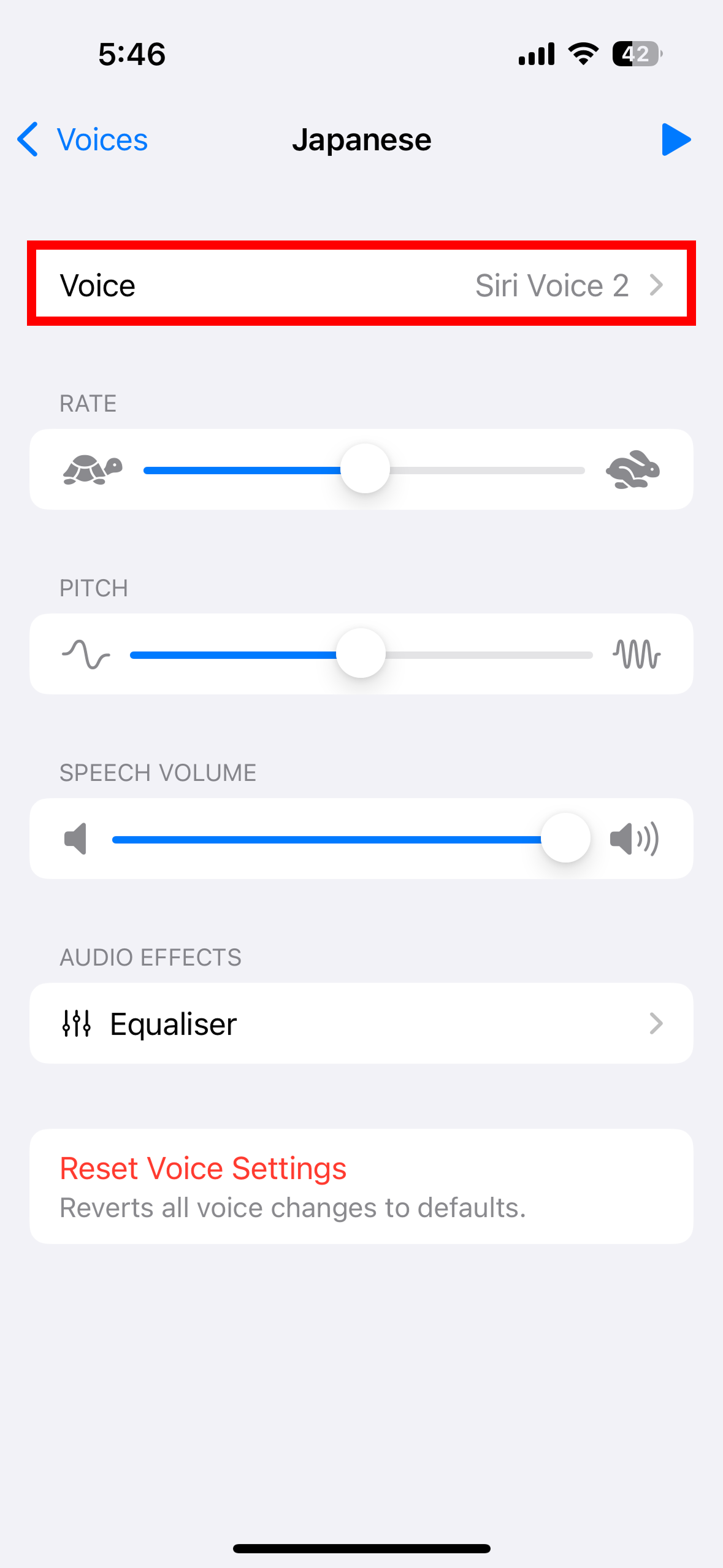
Japanese → Voice -
Download Kyoko (Enhanced) and/or Otoya (Enhanced)
Tap each Enhanced voice, then tap Download. Wait for it to finish.
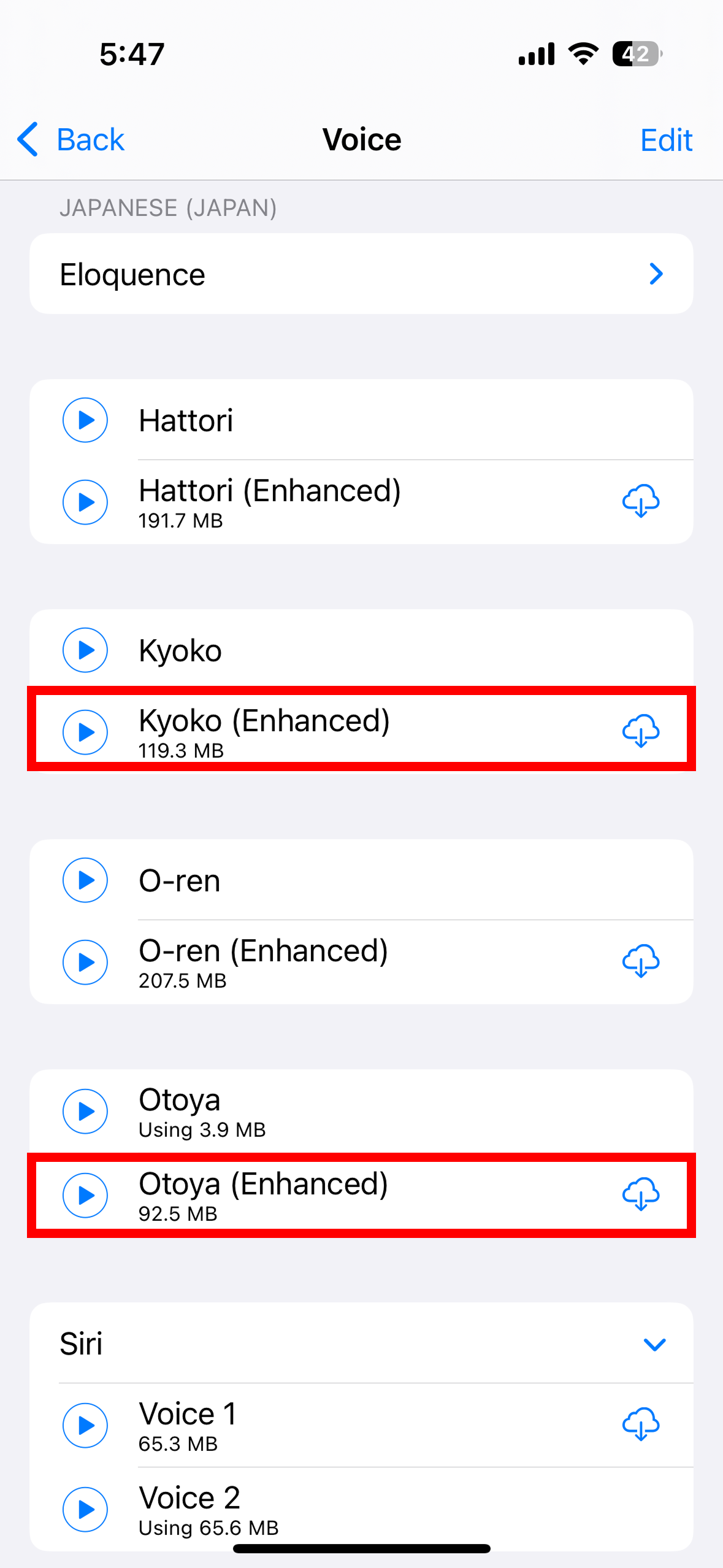
Download: Kyoko (Enhanced) / Otoya (Enhanced) -
Done! Head back to TabiTalk
Once downloaded, TabiTalk will automatically use the enhanced versions.
Troubleshooting
I don’t see “Kyoko (Enhanced)” or “Otoya (Enhanced)”
Try updating iOS, then check again. Also confirm you’re inside the Japanese voice list (not just the language list).
The download is stuck or won’t start
Connect to Wi‑Fi, plug your phone in, and make sure you have free storage. Then try again.
It still sounds robotic in TabiTalk
Force-quit and reopen the app after the download finishes. If you still don’t hear a difference, contact us at hello@tabitalk.com with your iOS version and device model.
Need more help? Visit Support.